
- Store
- Products
- Downloads
- Resources
-
 For Mac
 For Windows
 Home » AVCHD MTS/M2TS Tips » Canon C100 to iMovie
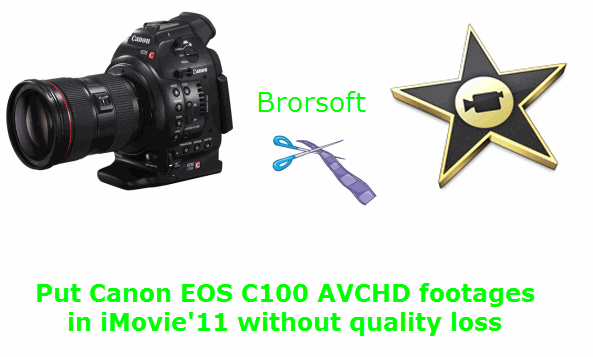
Put Canon EOS C100 AVCHD footages in iMovie'11 without quality loss
Canon already gave those looking for a full-frame DSLR plenty to think about recently, and now it's stirring up the movie-maker's pot. It's just announced a new member to its EOS digital cinema collection -- the EOS C100 -- and given us a better idea of when we can expect that C500 to land. The C100 essentially offers a new prospect for those with pockets not quite so deep. Unlike its 4K sibling, the C100 offers 1,920 x 1,080 AVCHD via its Super 35mm 16:9 CMOS sensor, has an ISO range of 320 to 20,000 and sports the EF mount system. Other features of interest include a push auto iris function, one-shot auto focus, a multi-angle 3.5-inch LCD and a locking HDMI output.
The Advantages of Canon EOS C100:
Professional quality and flexibility for single shooters
First-class camera system
Easy operation for single users
Professional design, professional audio
EF lenses and EF Cinema Lenses – power to create
For the record, my C300 is easily the best camera I own. Its
images always blow me away and its handling and form factor are just
superb. But the most terrible thing is that when I imput these cilps to
iMovie, I got the error message directly. Why? I am eager to editing in
iMovie further. Is there anyone here can help me? Thanks in advance.
This is an information from a forum that a photography enthusiast was seeking for help. In my opinion, the key problem lies in the different codec. The most compatible Codec for iMovie is Apple Intermediate Codec, but for Canon EOS C100 recordings, they are compressed by MPEG-4 AVC/H.264. That's the reason why the person mentioned above got the error while imputing Canon EOS C100 cilps to iMovie.
The fastest and safest way to solve this problem is to find a useful Canon EOS C100 MTS Converter on Mac OS X to transcode these files to AIC for iMovie editing.
Below is the simple steps for you to make C100 recordings editable for iMovie'11 with the best MTS Converter for Mac.
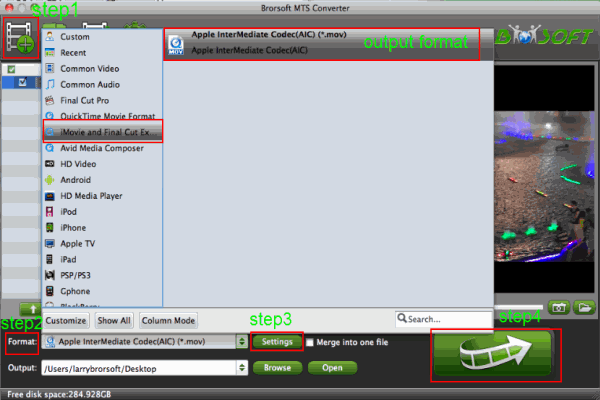
Step 1: Find a best Canon EOS C100 MTS Converter for mac to install, then imput the recordings to the program.
Tips: You can imput a number of files to the programs, and if necessary, you can use the function "Merge into one"
Step 2: Choose the best compatible output format--Apple Internediate Codec(AIC)(*.mov) for iMovie.
Step 3: Adjust audio and video parameters in Profile Settings. You can change the default codec, bit rate, frame rate, sample rate and audio channel according to your needs and optimize the output file quality.
Step 4: Click the arrow button on the main interface to start Canon EOS C100 1080i Converter for mac for editing in iMovie.
After conversion finished totally, you just need to click the "Open" button on the main interface of Canon EOS C100 1080i AVCHD Converter to find your converted file . That is to say you can edit your Canon EOS C100 recordings in iMovie easily and effortlessly.
Tips:
1. You can edit your files before converting such as "Trim","Crop","Add watermark".
2. Auto shutdown: Click Option and tick the box “Shut down the computer after conversion” before conversion starts.
3. If you want to edit cilps from Canon EOS C100 in FCP X, this tutorial will be helpful to you Edit Canon EOS C100 AVCHD footages in FCP X without quality loss.
4..If you want to edit cilps from Canon EOS C100 in Adobe Premiere Pro, this tutorial will be helpful to you Edit Canon EOS C100 AVCHD footages in Premiere Pro without quality loss .
5. 3D conversion. The Red-Blue/Red-Green 3D conversions are supported.
6. Deinterlace 1080i files: Click Edit and select "deinterlacing" in the Effect.
More Canon Related guides:
Best Way to Import Canon XA20 footage in Avid Media
Import Canon XA10 AVCHD 1080p files to Avid Media
Import AVCHD video from Canon Vixia HF S10 to iMovie'11
Get Canon Vixia HF S10/HF S100 AVCHD to work with FCE 4
Put Canon Legria AVCHD clips to iMovie/FCP/Avid for editing
Convert Canon HF R306 AVCHD to DNxHD for Avid Media ...
Make Canon Vixia HF R20 AVCHD files work with FCP on Mac
Canon VIXIA HF G20 to Avid Media Composer importing issues
How to Import Videos from Canon XA30 to FCP, Premiere, Avid
Import Canon Vixia HF S10 AVCHD to Adobe Premiere Pro on Mac
Related Products
MTS/M2TS Converter for Mac


Useful Tips
Social Connection

Copyright © 2019 Brorsoft Studio. All Rights Reserved.