Home » Products »TOD Converter

TOD Converter

Price: $29

  • Batch Convert JVC Everio GZ TOD Footages to AVI, MP4, WMV, MPEG, FLV, etc.
  • Convert JVC TOD Videos for edit with Windows Movie Maker, burn with Nero, etc.
  • Trim, crop, add special effects and different watermarks to TOD
  • 5-6X faster conversion speed with NVIDIA's CUDA & AMD APP technology and audio and video in synchronization
Version: V1.2 Size: 39.4 MB Supported OS:2000/XP/Vista/Windows 7/Windows 8
Free Download
  • Brorsoft TOD Converter is specially designed for JVC Everio Camcorder owners to edit and convert 1080i TOD videos into other formats like MP4, MKV, AVI, MOV,VOB, TS, FLV,3GP, 3G2, MP3, FLAC, MKA, OGG, WAV, AC3, M4A, etc. for playback on iPhone 4, iPad, PSP, Xbox, Archos, Droid X, Galaxy Tab, Microsoft Surface Tablet etc, edit in Adobe Premiere, Avid, Sony Vegas Cyberlink Power Director, Avid, Magix Movie Edit Pro, Windows Movie Maker etc, backup on your computer, or upload to your blogs for sharing.
  • The best TOD Converter also includes basic video editing feature that is very welcome by videographers, besides batch TOD files conversion, it allows deinterlacing TOD files, cutting out unwanted parts and merge multiple files into one, extract audio, take immediate snapshot, crop out black bars and setup your video as 16:9 widescreen aspect ratio.
  • If you would like to convert not only JVC Everio TOD footages, but also other common videos including MTS/M2TS/AVCHD/AVCHD Lite, TOD, Tivo, MKV, FLV, AVI, VOB, etc, please choose Brorsoft Video Converter.
  • Supports converting JVC Everio GZ TOD Videos
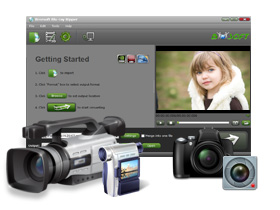
    Brorsoft TOD Converter is able to convert 1080/60i, 1080/50i TOD Videos shot by JVC Everio Camcorders, including JVC GZ-HD7, GZ-HD6, GZ-HD30, GZ-HD40, etc.
  • Convert TOD Videos to various multimedia formats
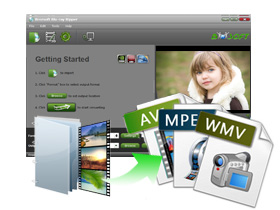
    The best TOD Converter enables you convert TOD videos to various multimedia formats such as MKV, AVI, WMV, MOV, MPEG, FLV, MP4, 3GP, H.264, etc. compatible with video editing tools, DVD burning tools, sharing websites and portable devices.
  • Trim, crop and merge TOD footages
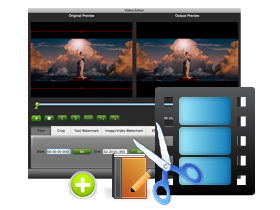
    The trim function allows you to get a specific length of video accurately since its inner seek function can capture any key frame of video, while with crop, you can cut off the black edges and unwanted video area easily. In addition, if you like, check the option “Merge into one file” on the main interface, you can merge several videos into one bigger file for conversion.
  • Add text, image, and video watermark to converted TOD Videos.
    Its watermark function allows you to add different watermark types, including text, image (including GIF), and video watermark. Its video watermark function will add a picture-in-picture effect on your video.
  • Give you 5-6X faster converting speed
    Brorsoft TOD Converter newly adopted NVIDIA CUDA and AMD APP (ATI Stream) technology that can totally accelerate your PC GPU, so as to finish your converting task with ultra-high speed and best output quality.(Note: To make the AMD APP works, the output profile is limited to H.264 codec.)
  • Audio and video sync technology
    Brorsoft TOD Converter adopts advanced audio and video sync technology, which helps to output video with high quality, never let you troubled by the audio and video issues.
  • Operating System: Windows XP/2003/Vista, Windows 7/Windows 8, Windows Home Server.
  • DirectX Version: 9.0 or above.
  • Memory: 64MB at least
  • Processor: Intel Pentium 3 processor at 500 MHz.
  • Hard Disc Space: 512MB or above.
  • 1. How to remove the watermark in the middle of the converted files?
    The watermark is the only difference between the trial version and full version. It can not be removed, even with the full version. Please understand the point and re-convert your original files with the full version.
  • 2. I Purchased the software and I received the code by email. But how do I enter the number?
    Please click the Download link to get the full version of the software, install and launch it, then you will see a box to fill in the registration code to activate it.
  • 3. How about the quality of the converted video?
    Based on the newest audio-video sync technology, TOD Converter can provide you with outstanding output image and sound quality, never let you get into trouble with the audio and video sync issues. Moreover, multiple optimizing functionalities are available to better the output video quality.
  • 4. What is the difference between TOD Converter and Video Converter?
    The difference mainly lies in the input video formats. Brorsoft TOD Converter can help you convert JVC Everio Camcorder owners to edit and convert 1080i TOD videos while Video Converter, besides all the functions of TOD Converter, can support almost all the formats of including TV shows (*.tivo, *dvr-ms, *.trp, *.tp, *.ts, etc), Flash Video/ YouTube video(*.flv, *.f4v), and common video files like MKV, VOB, WMV, AVI, etc. and AVCHD, MTS/M2TS, MOD, MOD, VRO, MOV videos shot by Sony, Canon, JVC, Panasonic, Nikon camcorders or DSLR cameras.
  • 5. I had purchased the Video converter and I ment to buy the same converter but for mac. Is there a way to change my order?
    Please contact support@brorsoft.com and our support will provide you with the Wins version. But if you are in urgent need of conversion and can not wait for the reply, please purchase the Wins version and explain your situation to our support and they will refund you.
  • 6. I’d like to eliminate black bars (edges) from the movie, what should I do?
    Please click ‘Edit’ button to enter into the "Video Editor" and switch to the Crop tab, then just drag the dashed frame on the video screen of the original preview window to cut off the unwanted parts to get the right aspect ratio you need.
  • 7. How to deinterlace my 1080i videos?
    Please click "Editor" and you will go to the "Video Editor". Then please click "Effect" and select "Deinterlace" there.
  • 8. I'm interested in purchasing your product, but i was wondering: does your software support nvidia sli for converting?
    Please click CUDA Supported List to check on the list of Supported Graphics Cards.
  • 9. Can I batch convert video files with this product?
    Please follow the simple steps and you can achieve the batch conversion.
    Step 1: Launch the Brorsoft software, import all the files you want to convert and select all of them;
    Step 2: Click on the dropdown menu of “Format” and then move your pointer to the format you need. You can find all the related formats on a sublist. Please select one that is suitable. After that, choose the output folder;
    Step 3: Click the “Settings” icon and you will go into a new interface named “Profile Settings”. You can adjust codec, bit rate, frame rate, sample rate and audio channel in the interface freely and optimize the output file quality.
    Step 4: Click the button for conversion and you can let the software do the rest work for you.
  • 10. When I am trying to do the batch conversion and transcode more than 20 files at the time., video converter kept crashing. Would you have any suggestions how to improve this?
    Please decrease the number of the files you want to convert at one time since the process will take much memory space (suppose the size of the input file is 1GB, the memory space needed is almost up to 40 GB) and make the software crash when you click the button for conversion.
  • 11. How to trim a video?
    You can achieve the goal in three ways:
    a. Drag Triangle icon below the preview window to locate the beginning and end of your clip during the preview;
    b. Press the button to locate the beginning and end of your clip during the preview.
    c. Input the certain time number in Set start time and Set end time fields.
  • 12. How to add a logo into my videos?
    Please click on the Editor and then you will go to a new interface, named Video Editor. You can find Image/Video Watermark feature, enable it and you can browse the logo then add to the videos.
  • 13. How to get the log files?
    Please click Windows+ R on your keyboard, fill %appdata% on your keyboard, and then you will go to the Roaming folder. Then please click Brorsoft > tod_converter, and you will find the log files needed.
  • 14. How to merge the two converted files?
    Please select the "Merge into one file" before you click the the button for conversion to make the converted files merged.
  • 15. Can the license I have got be used in another computer?
    No. Please understand that one license code can only be used on one computer. If you want to rip and convert movie on another computer, please contact support@brorsoft.com to purchase another license code at 20%-off discount price.
Input Files
MPEG-2 TOD, M2T,JVC: GZ-HD7, GZ-HD3, GZ-HD5, GZ-HD6, GZ-HD30, GZ-HD40
Output Devices supported:
Game Consoles
PS3, Xbox 60, Wii.
Tablets
iPad/iPad 2, Microsoft Surface Tablet, Samsung Galaxy Tab, Motorola Xoom, Blackberry Playbook, Acer Iconica Tab, Dell Streak, etc.
Mobile Devices
iPod, iPhone/iPhone 3GS/iPhone 4, Samsung Galaxy SII, Motorola Droid X/Droid 2, Droid Bionic, Nexus One/Two, HTC EOV 4G, HTC Hero, HTC Desire, HTC Droid Incredible, Nokia N8/N9/C7/E7, Sony Xperia Play, etc.
Website
YouTube, MySpace, Google, Yahoo, Dailymotion, Metacafe, MotionBox, etc.
Editing Software
Windows Movie Maker, Sony Vegas Movie Studio/Pro, Adobe Premiere Express/Elements/Pro, After Effects, Encore, Avid Media Composer, Pinnacle Studio, Nero Vision, Roxio Creator, etc.
DVD Burning Tool
DVD Maker, Nero, ImgBurn, StarBurn, Ashampoo Burning Studio, DeepBurner, Alcohol 120%, Adobe Encore DVD, etc.
Software Media Players and servers
Windows Media Player, Windows Media Center, Cyberlink PowerDVD Player, Media Player Classic Homecinema (MPHC), Arcsoft Total Media Theatre, GOM player, XBMC, VLC Player, etc.
Output File Types:
Video
H.264/MPEG-4 AVC (*.mp4), H.264 HD Video (*.mov), QuickTime HD Video (*.mov), WMV HD Video (*.wmv), MPEG2 HD Video (*.mpg, *.mpeg), MPEG TS HD Video (*.ts), DivX-HD (*.avi), MP4, AVI, MKV, WMV, MPG, MPEG, FLV, F4V, 3GP, MOV, ASF, 3G2, SWF, VOB, TS, DivX, XviD, DV, VCD/DVD/SVCD, M4V, etc.
Resolution
1080p (1920x1080), 720p (1280x720)
Audio
MP3, AC3, AAC, FLAC, AIFF, WMA, WAV, OGG, M4A, MP2, AMR, SUN, MKA, etc.
Image
JPG, BMP, TIFF, BMP (As thumbnails).
  • Date: September 13, 2012 (V 1.2.0.4076)
    - Add new categories with various profiles for HD Media Player, Acer, Asus, Toshiba, HTC, Lenovo and more.
    - Offer much more accurate description for the provided profiles.
    - Definite consistency of the icon and format for Apple TV profiles.
    - Perfect program loading function.
  • Date: May 8, 2012 (V1.1.0.3688)
    - Newly support of 2D to 3D video conversion
    - Make Apple TV 5.1 channel applied
    - Raise the default bitrate in Apple TV profile
    - Add profiles for HTC One X, ASUS Padfone and more
  • Date: March 6, 2012 (V1.0.8.3372)
    - Fix the problem of Audio/Video out of sync.
    - Update the “CUDA/AMD” icon in the main interface.
    - Add the user tip “Editing feature is not applicable to the current profile.” when you click the Edit icon under the circumstance setting the “Directly Copy” or “Remux” profile.
    - Add the ATI accelerating function.
    - Increase the list menu item “Customize Profile” in the tools menu which has the same function as the “Custom” in the profile list.
  • Date: October, 27, 2011 (V 1.0.5.2697)
    - Add the “Language” options: English, Japanese and Chinese considering that Brorsoft has lots of customers come from different regions that they would have different language habits. Just click the “Tools” button; you can freely select the one you preferred.
    - Newly increase two functions: Snapshots and Convert in the “Option” interface. With the Snapshots, you browse the save folder and select the format from JPG, PNG, TIFF and BMP. With the Convert function, you can freely set the CPU and process according to your PC.
    - Ajust the volume freely when you preview the videos by the newly added Volume adjustment function.
  • Date: Sep 14, 2011 (v 2.5.2.2359)
    - Update with a new main interface.
    - Present the wrong information during the procedure of optimizing program.
    - Newly add several output profiles to meet users’ demands well like Avid Studio, Samsung Galaxy Tab, Samsung Galaxy S Ⅱ, Motorola Xoom, Nook Color, Acer Iconia Tab, Pandigital Novel 6 Tablet, BlackBerry Playbook, etc.
    - Support the automatic update function for free all the time.
    - Add the new whole program running track log function to help users solve problems during the software usage in time.