Home » Products » MKV Converter for Mac

MKV Converter for Mac

Price: $29

MKV Converter for Mac

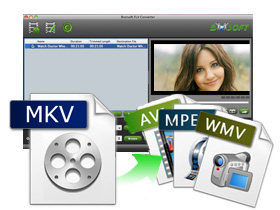
Brorsoft MKV converter is professional and powerful, especially MKV to MP4 Converter and MKV to AVI Converter, designed to help you perfectly convert MKV files to all various popular videos Such as AVI, MP4, WMV, MOV, FLV, ASF etc, it also supports HD AVI, HD MP4, HD WMV, HD MOV, HD ASF as output formats.


  • Support Advanced audio and video in sync technology
  • Edit your video files at ease like adding watermark, merging, clipping.
  • Deinterlace MKV files to get perfect output video quality.
  • Freely select wanted chapters, video streams and subtitles/audio tracks.
  • Convert any MKV files from website or other source to AVI, MP4, WMV, MOV, FLV, VOB, etc.
Version: V2.6 Size: 61.44 MB Supported OS:Mac OS X(Leopard/Snow Leopard/Lion)
Free Download
For Mac 10.5.8, Please download the special installation .dmg file
  • Brorsoft MKV Converter for Mac is a splendid MKV Converter on Mac OS X which especially plays roles as best MKV to MP4/MOV/AIV/FLV Converter and best MKV to iPad 2/iPhone 4S/Galaxy Tab Converter.
  • Brorsoft MKV Converter for Mac is designed to help you perfectly convert MKV files to almost all the popular video formats such as AVI, MP4, WMV, MOV, FLV both in SD and HD for playing on mass portable devices or home theater like Google Nexus 7 Tablet, Galaxy Note 10.1,Transformer Pad Infinity TF700T, iPad/iPad 2, PSP, iPhone 4S, Apple TV, Motorola Xoom, Blackberry Playbook, Galaxy Tab, Sony Tablet S, Samsung Galaxy Note, etc.
  • Brorsoft MKV Converter for Mac possesses the new stunning features that it can recognize all video streams and audio/subtitles tracks in a source MKV container file. Namely, you can freely select the audio track, subtitles track and video streams as you like. Besides, if you have MKV file which is generated from a Blu-ray/DVD backup with chapter information retained, the updated MKV Converter for Mac also allows to you to check the chapters that you would like to convert.
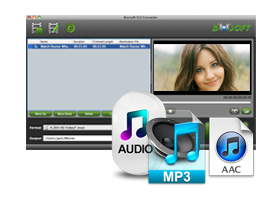
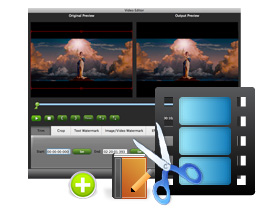
  • Moreover, as the powerful MKV editor as well, Brorsoft MKV Converter for Mac offers several simple but useful video editing options, like cropping video size, merging several videos into one file, trimming video clips and adding special effects. Thus you can get a perfect and personalized video.
  • If you not only wanna convert MKV files, but also want to convert other video formats like TV shows (*.tivo, *dvr-ms, *.trp, *.tp, *.ts, etc), Flash Video/ YouTube video(*.flv, *.f4v), 1080p/1080i/720p HD Video (*.tod, *.mod, *.m2t, *.m2ts, *.mvi, *.mxf, *.vro, *.ts, *.tp, *.evo, *.mkv, *.dv ), and general Video (AVI, MPEG, WAV, VOB, etc.), Brorsoft Video Converter for Mac will be your first choice.
  • Fast conversion speed
    You can quickly convert video files in a few seconds because of the advanced Multitask and Multithread coding technology. It is 3-5x faster than other similar programs.
  • Audio video sync conversion
    Brorsoft MKV Converter for Mac adopts AV-sync conversion technology, which can insure the audio synchronize perfectly with the video.
  • Manifold output formats
    This program supports a variety of output formats including FLV, MP4, MPG, AVI, MP3, FLAC, OGG, M4A, WAV, 3G2, VOB, SWF, and MOV.
  • Powerful editing function
    Brorsoft MKV Converter lets you set the video effect by changing the brightness, contrast, saturation, volume of the video. Trim, crop the video even replace the audio track. What’s more, you can select the specific effect model from Simple gauss blur, Simple laplacian sharpen, Aged film, Flip color, Invert and None.
  • Merge video files
    If you want to put the several video files into one, just check the option “Merge into one file” to apply it.
  • Select preferred chapters, video streams and subtitles/audio tracks freely
    With the professional Brorsoft MKV Converter for Mac, you can freely select the audio track, subtitles track and video streams as you like. Besides, if you have MKV file which is generated from a Blu-ray/DVD backup with chapter information retained, the updated MKV Converter for Mac also allows to you to check the chapters that you would like to convert and even have a preview.

    . 1G Hz or above Intel processor.

    . Mac OS X 10.5 or 10.5 above (including Mac OS X v10.5 Leopard, v10.6 Snow Leopard Mac OS X 10.7 Lion and Mac OS X Mountain Lion version 10.8) on iMac, MacBook Pro, Mac Pro, MacBook Air, Mac Mini, etc. (If you are PowerPC user or want to run the program in Mac OS X 10.4, please contact support@brorsoft.com to get it.)

    . 512 MB physical RAM (memory) or more.

    . 1024*768 or higher resolution display.

  • Just purchased your software and it has failed to install on my mac osx 10.5.8, get error message: Install failed. The Installer could not install some files"/ Applications". Contact the software manufacturer for assistance. Any solutions?
    Brorsoft products have been updated to support the new Mac Mountain Lion system. This new .pkg file may have problem to install on Mac OS X 10.5.8. If you have this problem pls download the special installation .dmg file for Mac OS X 10.5.8 on our official site. http://www.brorsoft.com/dmg/mkvconvertermac_install.dmg
    Further question, you can contact support@brorsoft.com.
  • How to remove the watermark in the middle of the converted files?
    The watermark is the only difference between the trial version and full version. It can not be removed, even with the full version. Please understand the point and re-convert your original files with the full version.
  • I Purchased the software and I received the code by email. But how do I enter the number?
    Please click the Download link to get the full version of the software, install and launch it, then you will see a box to fill in the registration code to activate it.
  • How about the quality of the converted video?
    Based on the newest audio-video sync technology, MKV Converter for Mac can provide you with outstanding output image and sound quality, never let you get into trouble with the audio and video sync issues. Moreover, multiple optimizing functionalities are available to better the output video quality.
  • What is the difference between MKV Converter for Mac and Video Converter for Mac?
    The difference mainly lies in the input video formats. Brorsoft MKV Converter for Mac can only help you convert .mxf files to almost all the popular video formats such as AVI, MP4, WMV, MOV, FLV both in SD and HD for playing on mass portable devices or home theater while Video Converter for Mac, besides all the features of MOD Converter for Mac, can transcode TV shows(*.tivo, *dvr-ms, *.trp, *.tp, *.ts, etc), Flash Video/ YouTube video(*.flv, *.f4v),1080p/1080i/720p HD Video (*.tod, *.m2t, *.m2ts, *.mvi, *.mxf, *.vro, *.ts, *.tp, *.evo, *.mkv, *.dv ), and general Video (AVI, MPEG, WAV, VOB, etc.).
  • I had purchased the MKV Converter for Mac and I ment to buy the same converter but for windows. Is there a way to change my order?
    Please contact support@brorsoft.com and our support will provide you with the Wins version. But if you are in urgent need of conversion and can not wait for the reply, please purchase the Wins version and explain your situation to our support and they will refund you.
  • I’d like to eliminate black bars (edges) from the movie, what should I do?
    Please click ‘Edit’ button to enter into the "Video Editor" and switch to the Crop tab, then just drag the dashed frame on the video screen of the original preview window to cut off the unwanted parts to get the right aspect ratio you need.
  • Can I batch convert video files with this product?
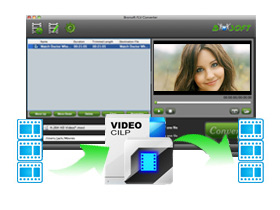
    Please follow the simple steps and you can achieve the batch conversion.
    Step 1: Launch the Brorsoft software, import all the files you want to convert and select all of them;
    Step 2: Click on the dropdown menu of “Format” and then move your pointer to the format you need. You can find all the related formats on a sublist. Please select one that is suitable. After that, choose the output folder;
    Step 3: Click the “Settings” icon and you will go into a new interface named “Profile Settings”. You can adjust codec, bit rate, frame rate, sample rate and audio channel in the interface freely and optimize the output file quality.
    Step 4: Click the button for conversion and you can let the software do the rest work for you.
  • When I am trying to do the batch conversion and transcode more than 20 files at the time., video converter kept crashing. Would you have any suggestions how to improve this?
    Please decrease the number of the files you want to convert at one time since the process will take much memory space (suppose the size of the input file is 1GB, the memory space needed is almost up to 40 GB) and make the software crash when you click the button for conversion.
  • How to trim a video?
    You can achieve the goal in three ways:
    a. Drag Triangle icon below the preview window to locate the beginning and end of your clip during the preview;
    b. Press the button to locate the beginning and end of your clip during the preview.
    c. Input the certain time number in Set start time and Set end time fields.
  • How to add a logo into my videos?
    Please click on the Editor and then you will go to a new interface, named Video Editor. You can find Image/Video Watermark feature, enable it and you can browse the logo then add to the videos.
  • How to get the log files?
    Please click Windows+ R on your keyboard, fill %appdata% on your keyboard, and then you will go to the Roaming folder. Then please click Brorsoft > mkv_converter, and you will find the log files needed.
  • How to merge the two converted files?
    Please select the "Merge into one file" before you click the the button for conversion to make the converted files merged.
  • Can the license I have got be used in another computer?
    No. Please understand that one license code can only be used on one computer. If you want to rip and convert movie on another computer, please contact support@brorsoft.com to purchase another license code at 20%-off discount price.
Input Files
MKV file (*.mkv), MKV DTS file
Output Devices supported:
Editing Software
iMovie, Final Cut Pro, Adobe Premiere Pro, Avid Media Composer, Final Cut Express, Kdenlive, After Effects, Adobe CS4 Master Collection, Adobe Encore, Media 100, Clesh, etc.
DVD Burning Tool
iDVD, Nero, Roxio Toast, Disco, Burn, DVD Studio Pro, etc.
Media Players
iPad/iPad 2, iPod, iPod Touch 4G, iPhone 4, iPhone 4S, iPhone 5, Apple TV, Apple TV 2, PSP, PS3, Xbox 360, XBMC Media Center, Archos 5/7, Motorola Droid X, Motorola Xoom, HTC EVO 4G, HTC Droid Incredible, Samsung Galaxy S, Samsung Galaxy Tab, Motorola Droid X, Blackberry Playbook, Droid 2, WDTV, Popcorn Hour, Xtreamer, QNAP NMP, HDTV, QuickTime Player, VLC, iTunes, etc.
Website
YouTube, MySpace, Google, Yahoo, Dailymotion, Metacafe, MotionBox, etc.
More
HTPC, Home Theater, Networked Devices, NAS, PowerPoint Presentation, LCD Projector, PDF, Keynote, etc.
Output File Types:
Video
H.264/MPEG-4 AVC (*.mp4), H.264 HD Video (*.mov), QuickTime HD Video (*.mov), WMV HD Video (*.wmv), MPEG2 HD Video (*.mpg, *.mpeg), MPEG TS HD Video (*.ts), DivX-HD (*.avi), MP4, AVI, MKV, WMV, MPG, MPEG, FLV, F4V, 3GP, MOV, ASF, 3G2, SWF, VOB, TS, DivX, XviD, DV, VCD/DVD/SVCD, M4V, etc.
Resolution
1080p (1920x1080), 720p (1280x720)
Audio
MP3, AC3, AAC, FLAC, AIFF, WMA, WAV, OGG, M4A, MP2, AMR, SUN, MKA, etc.
Image
JPG, BMP, TIFF, BMP (As thumbnails).
  • Date: September 13, 2012 (V 2.6.0.4051)
    - Add 16 new profiles for recent devices and HD media players.
    - Make perfect conversion for your network path files on Mac OS X 10.8.
    - ptimize the Crop function.
    - Greatly improve the program efficiency.
    - Perfect installation after the automatic update.
  • Date: July 24, 2012 (V 2.5.13.3959)
    - Optimize the Size of HDV profile according to standard HDV 720p, 1080i size.
    - Optimize Apple TV profile: apply M4V format to replace MP4; offer original frame rate option.
    - Support all the XDCAM encode output for FCP profile.
    - Add Profile supporting XDCAM EX 1080i60, XDCAM HD422 1080p25 and some other video codec.
  • Date: June 14, 2012 (V 2.5.11.3857)
    - Turn the “Apply crop settings to all” function back on.
    - Enhance the convert fucntion when apply the “Apply crop settings to all” feature.
    - Imporve the preivew effect under the Crop function when apply the Flip Horizontally and Flip Vertically.
  • Date: Jun 4, 2012 (V 2.5.10.3829)
    - Add the new function for exact trim
    - Support multiple-streams output for Apple TV profiles
    - Support automatic upgrade
    - Add the automatic split options for the Android profile when the bitrate is over 4,000kbps to limit the output size
  • Date: May 8, 2012 (V 2.5.9.3688)
    - Add profiles for HTC One X, ASUS Padfone and more media devices
    - Newly support of 2D to 3D video conversion
    - Optimize the Effect user interface in Editor
    - Make Apple TV 5.1 channel applied
  • Date: March, 19, 2012 (V2.5.8.3551)
    - Fix the issue of incomplete conversion of some video files.
    - Add Deutsch to the supported language.
    - Add the Split function to support video split according to split file count, split time length and split file size.
    - Rich the profile list, add the profiles for the newly-released devices: iPad 3 profile, iPod Touch 4 profile, iPhone 4S profile, etc.
    - Add the Library in the Options menu bar offering the Supported Library: Classic or Surpassed to choose one at your will.
  • Date: February 28, 2012 (V2.5.7.3273)
    This update especially aimed at solving the problem of ProRes to optimize the conversion process.
    - Fix the problem of Audio/Video out of sync.
    - Fix the problem that the output ProRes cannot be supported by FCP 7.
    - Remove the “Original” Frame rate option and set the 23.976 as the default Frame rate.
    - Give the “Trial Version Tips” before the conversion.
  • Date: October, 27, 2011 (v2.5.4.2697)
    Based on original functions, add more humanism designs:
    - Add the “Language” options: English, Japanese and Chinese
    - Design two more functions: “Snapshots” and “Convert” in the “Option” interface
    - Add the Volume adjustment function
    - Optimize the TRIM way in video edit page